
Short answer: activate Ad Manager in the sub-account, connect Facebook and choose the ad account and page, map each form field to a HighLevel contact field, then build a workflow on the Facebook Lead Form Submitted trigger, filtered to the right page and form. The workflow should reply within minutes, assign an owner and create an opportunity in your pipeline.
Step 1: Connect Facebook and Instagram
Following HighLevel's lead ads guide:
- In the sub-account, go to Marketing then Ad Manager and activate it if needed.
- Click Connect Facebook, log in and grant the requested permissions to LeadConnector.
- Select the Meta ads account and the Facebook Page you advertise from, then connect.
You can then create Meta lead campaigns from Ad Manager or keep running them in Meta and receive the leads.
Step 2: Map the form fields
HighLevel can organise lead information for follow-up only when form fields are mapped to the right contact fields. Map name, phone and email, and create custom fields for the qualifying questions you ask, such as service needed, postcode or timeline. Unmapped answers are where useful context gets lost.
Step 3: Trigger a workflow for each form
The Facebook Lead Form Submitted trigger starts a workflow as soon as someone submits an instant form on your connected page. Its filters let you run a workflow only for a specific page and form, so a "free inspection" form and a "maintenance plan" form can follow different paths.
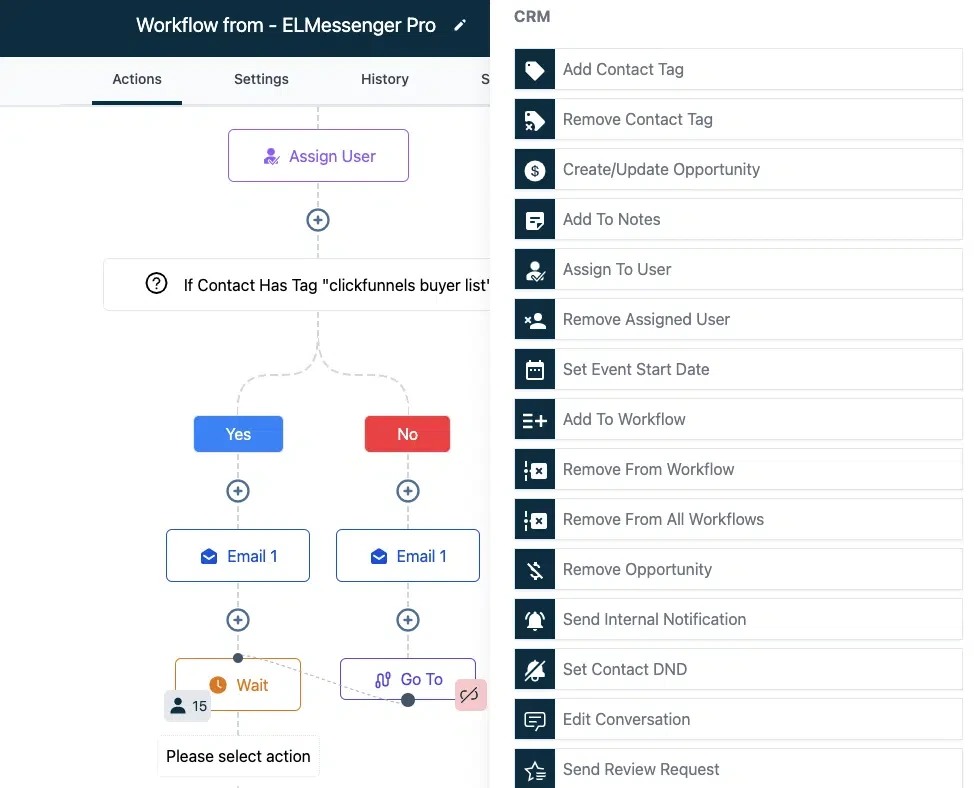
Step 4: What the workflow should do
- Send a short text and email confirming the request within minutes.
- Tag the contact with the form and campaign so you can report by source.
- Create an opportunity in the right pipeline stage and assign an owner.
- Notify the owner, and escalate if nobody has replied within your target time.
- Offer a booking link and stop the sequence as soon as the lead books or replies.
Improve lead quality, not just volume
Instant forms are easy to submit by mistake. A qualifying question or two, a higher-intent form type and a quick phone call within minutes all reduce wasted follow-up. Track which forms produce booked appointments, not only which produce the most submissions, and spend accordingly.
Send outcomes back to Meta
HighLevel also supports sending events back to Meta through the Conversions API, documented in its Conversions API workflow guide. Reporting qualified or booked leads back to Meta helps the ad system find more people like the ones who became customers.
Frequently asked questions
Do I need a landing page for Facebook lead ads?
No. Instant forms live inside Facebook, and the Facebook Lead Form Submitted trigger sends the data to HighLevel without a separate landing page.
Why are some leads not appearing in GoHighLevel?
Common causes are a disconnected page or permission, unmapped fields, a workflow filtered to the wrong form, or duplicate-handling rules. A CRM audit checks each step from form submission to first follow-up.
Can different forms get different follow-up?
Yes. Use the trigger's page and form filters, or tags, so each form starts its own workflow.
What does it cost to run?
Ad spend is paid to Meta. Texts and emails in the follow-up are usage-based charges in HighLevel. See the GoHighLevel setup cost guide.
Related: Meta Ads to GoHighLevel integration · Paid advertising management · GoHighLevel setup services · GoHighLevel for roofing companies